Manage ApiShip Settings in Medusa Admin
In this guide, you'll learn how to manage the ApiShip integration's settings and delivery services, and how to add ApiShip shipping options to a stock location.
View ApiShip Details
To view the ApiShip details:
- Open Medusa Admin.
- Go to Settings → Integrations → ApiShip.
This opens the ApiShip settings page with the Credentials, Sender and Delivery Services sections, and the Payment & VAT and Default Product Settings sections beside them.
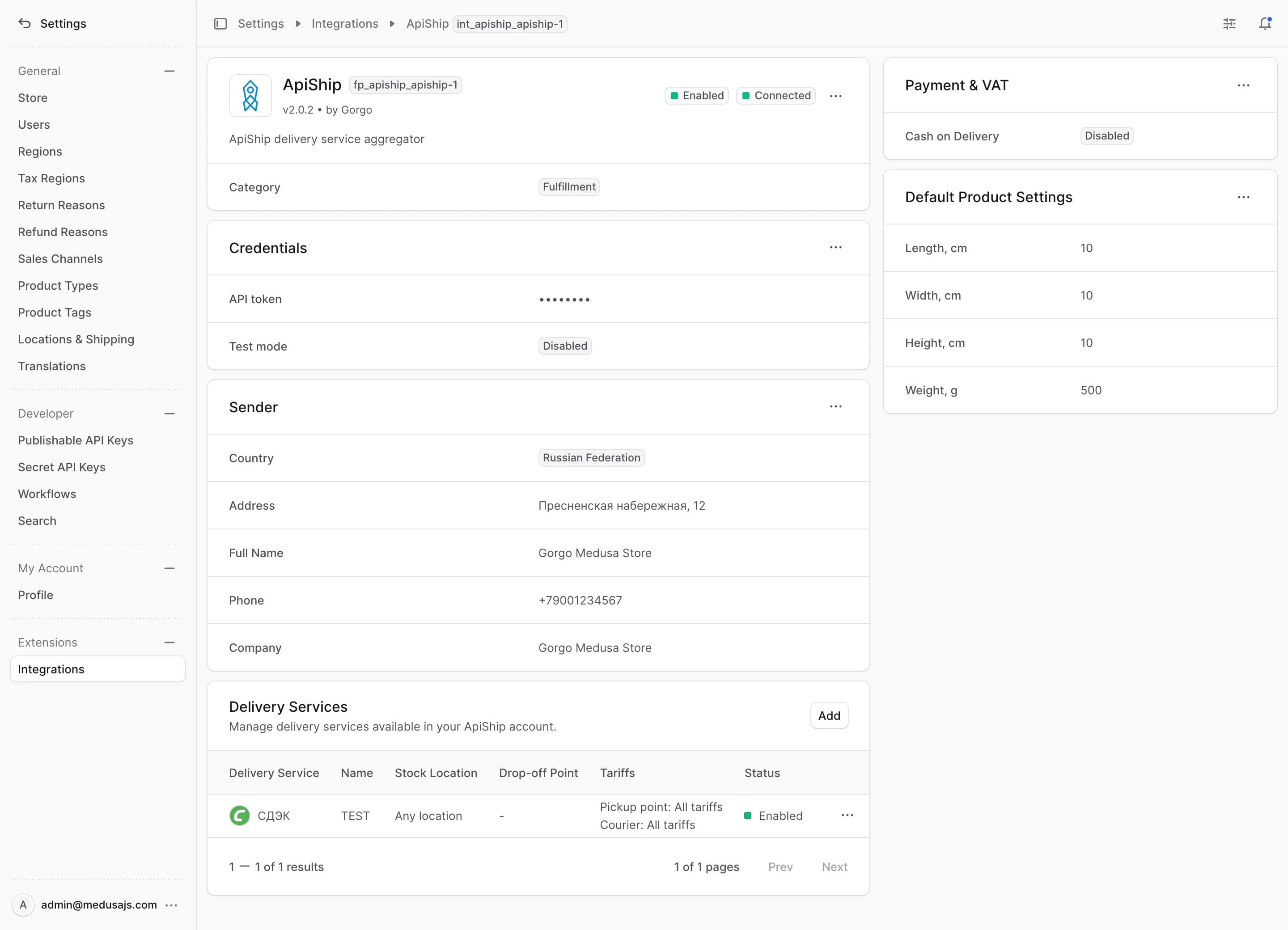
The action menu next to the integration's status badges holds Test connection, which checks the API token against ApiShip, along with Enable, Disable and Delete. While the integration is disabled or its settings are incomplete, the plugin's store routes return an error and the storefront shows no ApiShip tariffs.
Edit ApiShip Credential Parameters
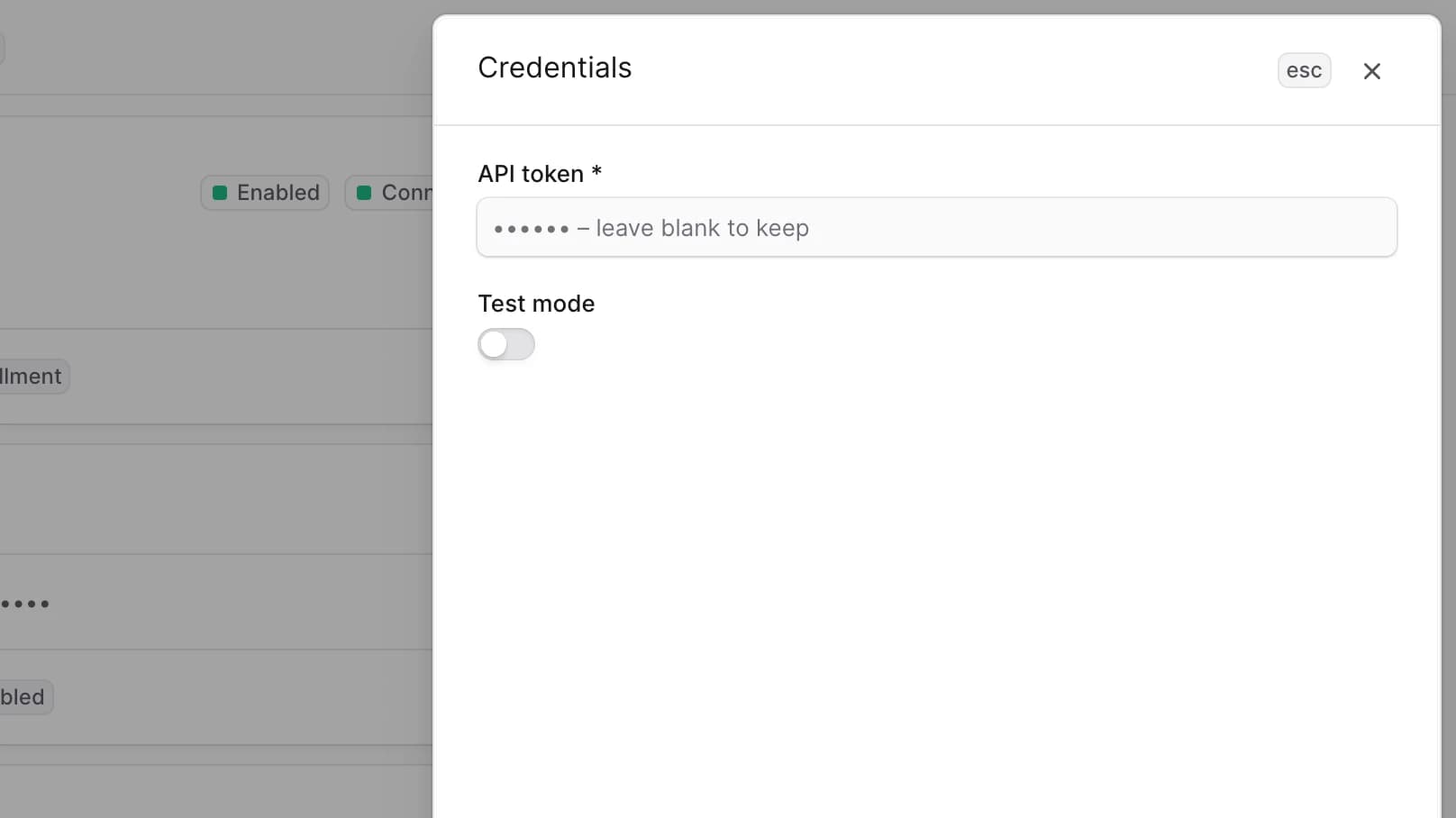
The Credentials section holds the ApiShip API token and the test mode switch. Test mode points the plugin at ApiShip's test environment, where calculations and orders don't create real shipments.
To edit the credential details:
- Go to Settings → Integrations → ApiShip.
- In the Credentials section, click the action menu in the section's header.
- Choose Edit.
- In the side panel that opens, enter the API token or switch test mode on or off. Leave the token field empty to keep the saved token.
- Click Save.
Edit Sender Details
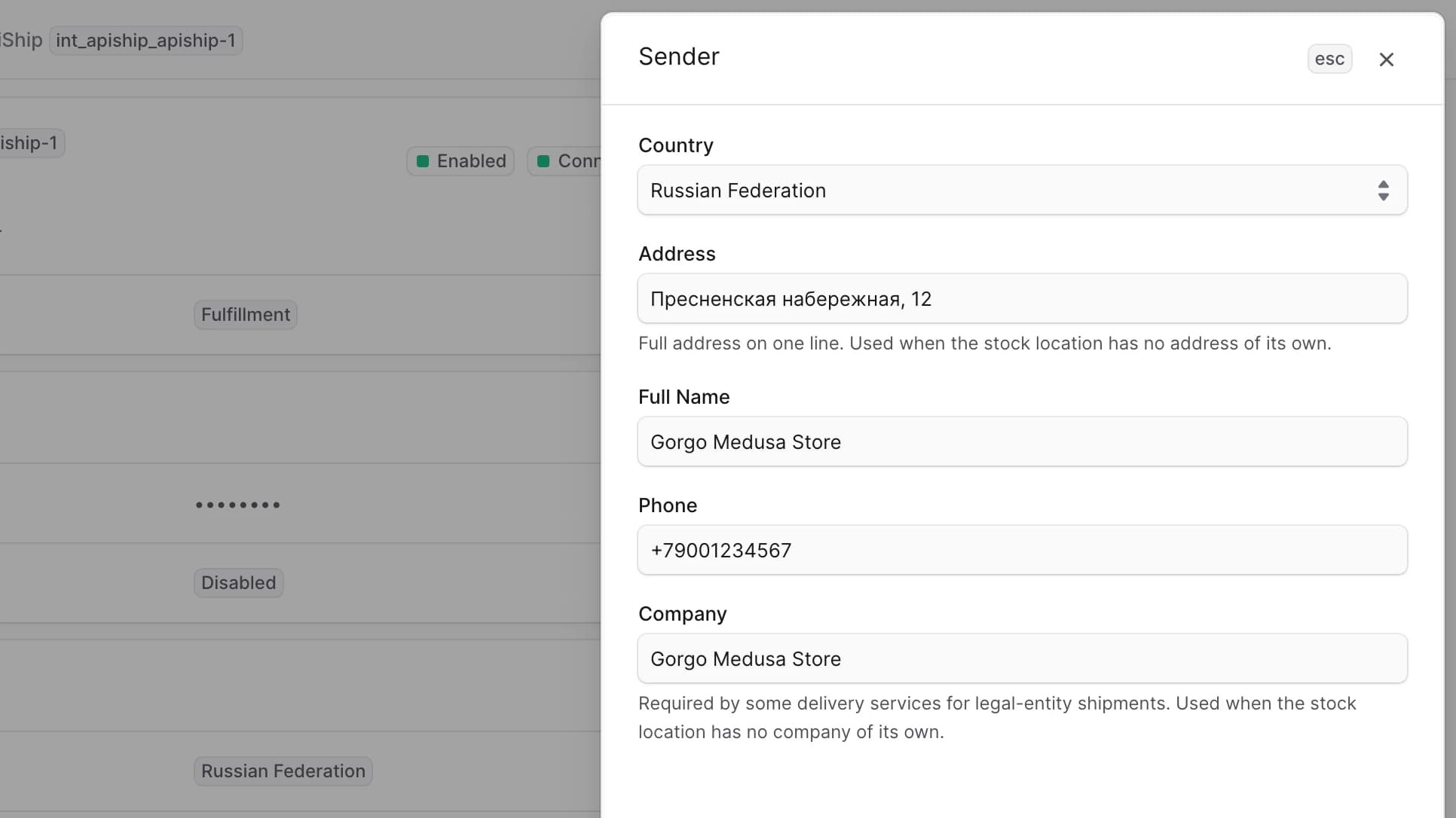
The Sender section stores the country, address, full name, phone and company the plugin puts on every ApiShip order as the sender.
The plugin takes the country, the phone and the company from the stock location the order ships from when it has them, and falls back to this section otherwise. It takes the address from the stock location when the location's city and both address lines are filled in, and from this section otherwise. The full name always comes from this section. ApiShip rejects an order without a country, an address, a full name and a phone, so fill those in even when your stock locations carry their own details.
Delivery calculations at checkout don't use this section. They use the address of the stock location, so every location that ships through ApiShip needs a full address.
To edit the sender details:
- Go to Settings → Integrations → ApiShip.
- In the Sender section, click the action menu in the section's header.
- Choose Edit.
- In the side panel that opens, update the sender's country, address, full name, phone or company.
- Click Save.
Edit Payment & VAT
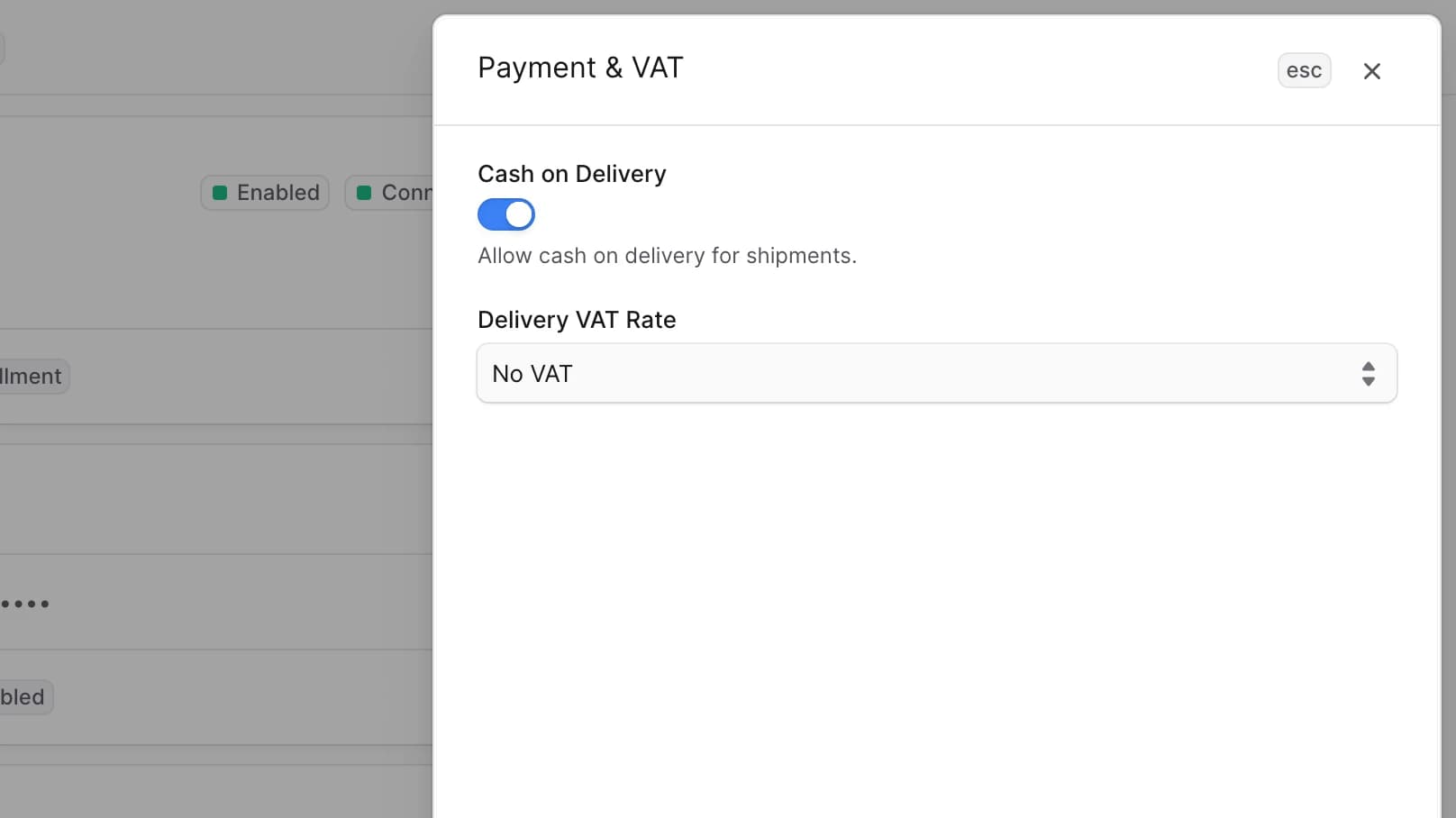
The Payment & VAT section controls cash on delivery for ApiShip orders.
With Cash on Delivery on, the plugin sends the items' prices as their cost and declared value, the items' total as the amount to collect, and the delivery VAT rate. The calculation at checkout includes the amount to collect too. With it off, the plugin sends the items with a zero cost and declared value, and no amount to collect.
To edit the payment and VAT settings:
- Go to Settings → Integrations → ApiShip.
- In the Payment & VAT section, click the action menu in the section's header.
- Choose Edit.
- In the side panel that opens, switch Cash on Delivery on or off. The Delivery VAT Rate field appears once cash on delivery is on.
- Click Save.
Edit Default Product Settings
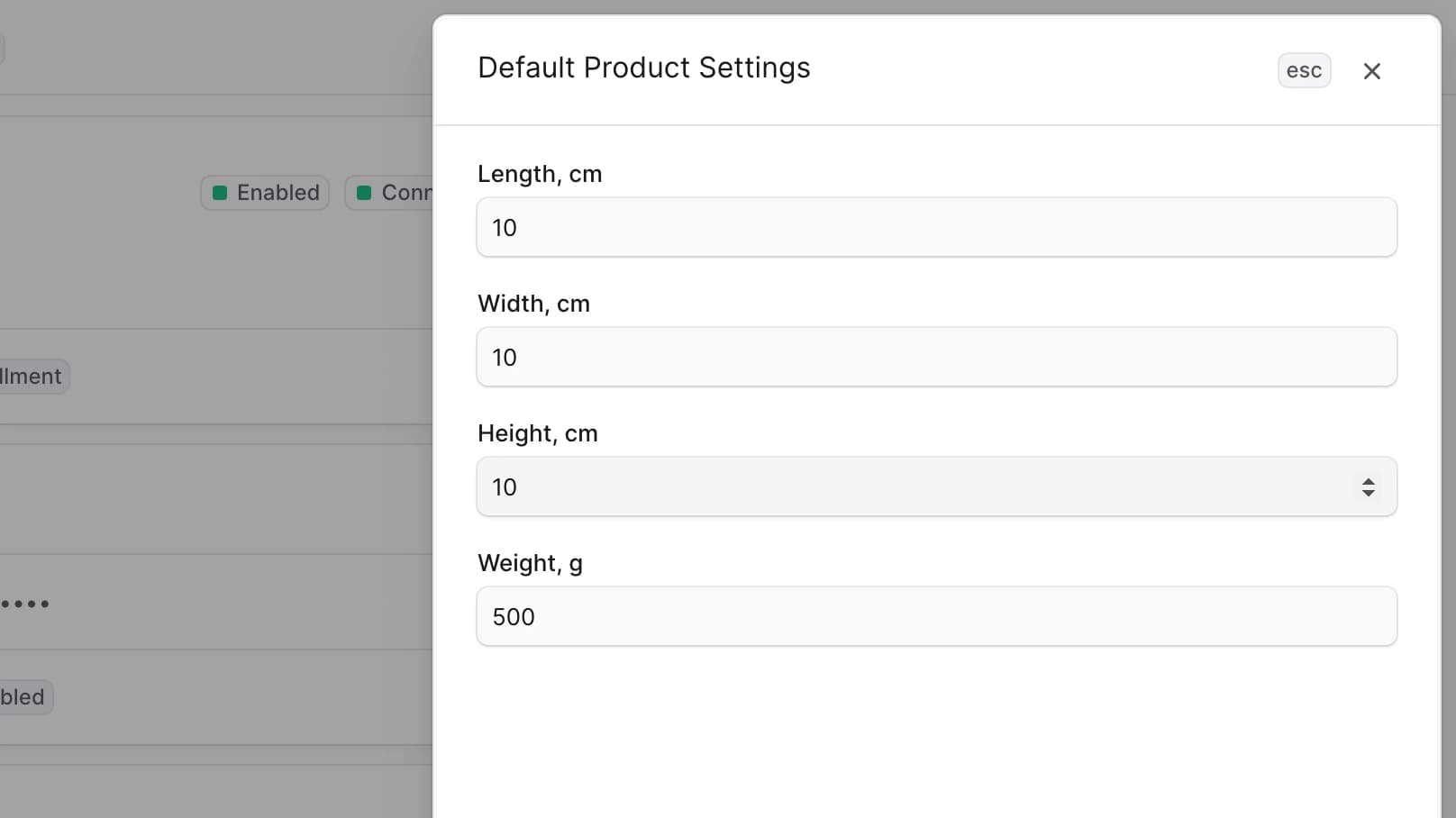
The Default Product Settings section stores the fallback length, width and height in centimeters, and the fallback weight in grams. The defaults are 10 × 10 × 10 cm and 20 g, and every value must be greater than zero.
The plugin uses them for every product variant that has no dimensions or weight of its own, both when it calculates delivery at checkout and when it creates the ApiShip order.
To edit the default product settings:
- Go to Settings → Integrations → ApiShip.
- In the Default Product Settings section, click the action menu in the section's header.
- Choose Edit.
- In the side panel that opens, update the default length, width, height and weight.
- Click Save.
Manage Delivery Services
A delivery service links a carrier contract in your ApiShip account to Medusa. When the plugin creates an order, it takes the enabled delivery service of the order's carrier whose stock location matches the location the order ships from. When there is none, it takes the enabled delivery service of that carrier set to Any location. Without either, creating the ApiShip order fails.
A delivery service also decides which tariffs of its carrier the checkout offers, and from where the carrier collects the parcels:
- Allowed tariffs – with nothing selected, the checkout offers every tariff of the carrier. Otherwise it offers only the selected ones, chosen separately for courier delivery and for pickup point delivery.
- Drop-off point – the carrier's point where you hand the parcels in. Without one, the carrier's courier collects them from the sender's address. The From pickup point to door and From pickup point to pickup point shipping options need a drop-off point, or creating the order fails.
Only one delivery service per carrier and stock location can be enabled at a time, Any location included. To use different drop-off points for different warehouses, add a delivery service for each warehouse.
Add Delivery Service
The list of connections comes from your ApiShip account, so save the API token first.
To add a delivery service:
- Go to Settings → Integrations → ApiShip.
- In the Delivery Services section, click Add.
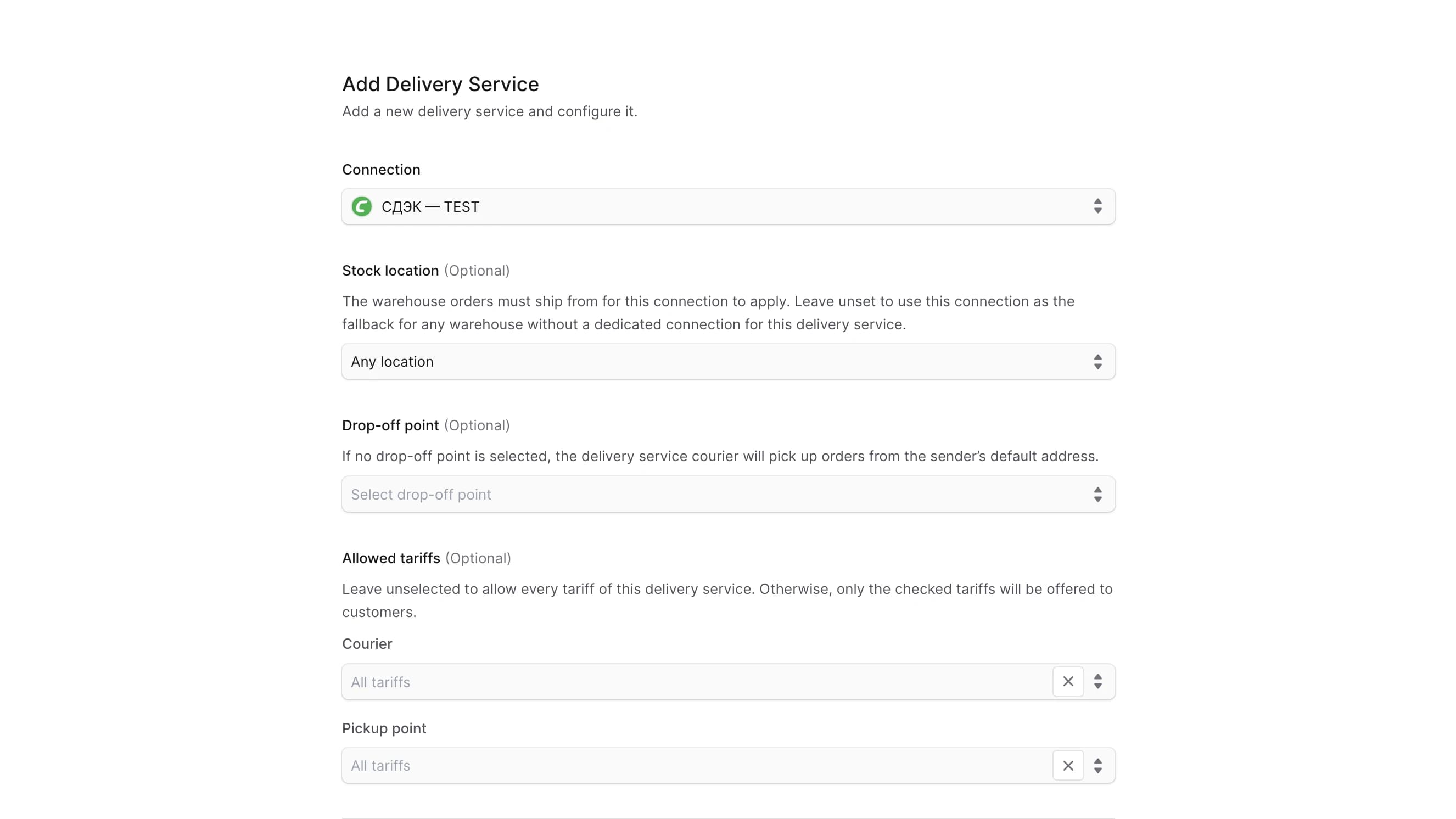
- In the modal that opens:
- Choose a Connection from your ApiShip account.
- Optionally choose a Stock location. Leave Any location to use the delivery service for every warehouse without a delivery service of its own.
- Optionally choose a Drop-off point.
- Optionally choose the Allowed tariffs for courier and pickup point delivery.
- Choose whether the delivery service is Enabled.
- Click Save.
Edit Delivery Service
To edit a delivery service:
- Go to Settings → Integrations → ApiShip.
- In the Delivery Services section, find the delivery service you want to update.
- Open the row's action menu.
- Choose Edit.
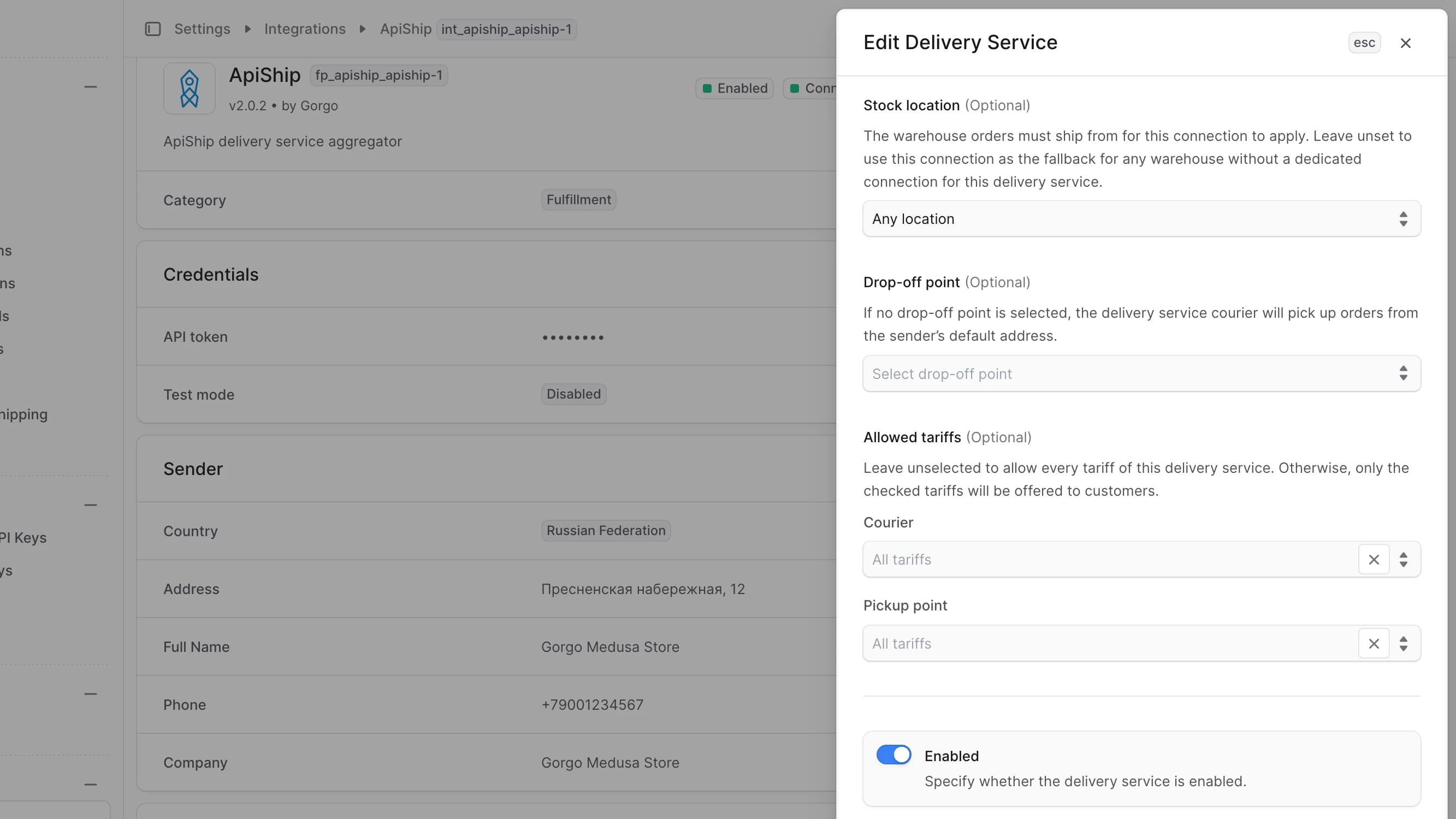
- In the side panel that opens, update the stock location, the drop-off point, the allowed tariffs or the enabled status. The connection itself can't be changed.
- Click Save.
Delete Delivery Service
To delete a delivery service:
- Go to Settings → Integrations → ApiShip.
- In the Delivery Services section, find the delivery service you want to delete.
- Open the row's action menu.
- Choose Delete.
- Confirm the deletion.
Add Shipping Options
Before you add an ApiShip shipping option, connect ApiShip to the stock location. On the location's page, open the action menu of the Fulfillment Providers section, choose Edit and select Apiship. The location also needs a shipping service zone.
To add a shipping option for ApiShip:
- Go to Settings → Locations & Shipping.
- Choose your stock location.
- In the Shipping options section of the service zone, click Create option.
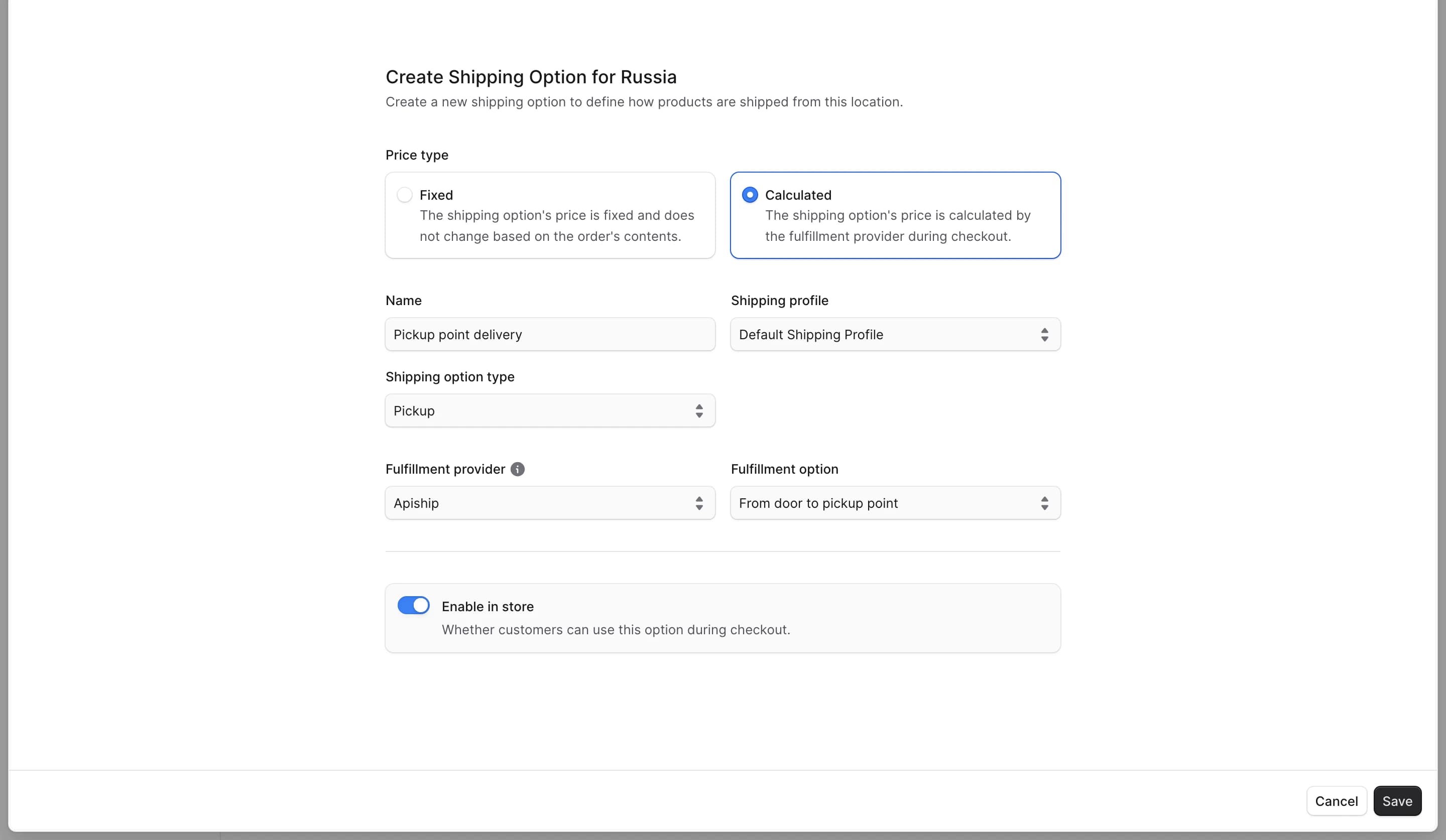
- In the modal that opens:
- Set the price type to Calculated.
- Specify the name of the shipping option.
- Select the shipping profile and the shipping option type.
- Set the fulfillment provider to Apiship.
- Choose one of the fulfillment options:
- From door to door
- From door to pickup point
- From pickup point to door
- From pickup point to pickup point
- Leave Enable in store on.
- Click Save.
The fulfillment option decides where the carrier collects the parcel and where it delivers it. The two From pickup point options need a delivery service with a drop-off point. The plugin doesn't support returns, so its Return fulfillment option can't be used for a return shipping option.