Manage PayPal Settings in Medusa Admin
In this guide, you'll learn how to view and edit PayPal integration settings in Medusa Admin via the Integration Module.
View PayPal Details
To view the PayPal details:
- Open Medusa Admin.
- Go to Settings → Integrations → PayPal.
This opens the PayPal settings page where you can review the credential details, the payment behavior and the PayPal checkout page settings.
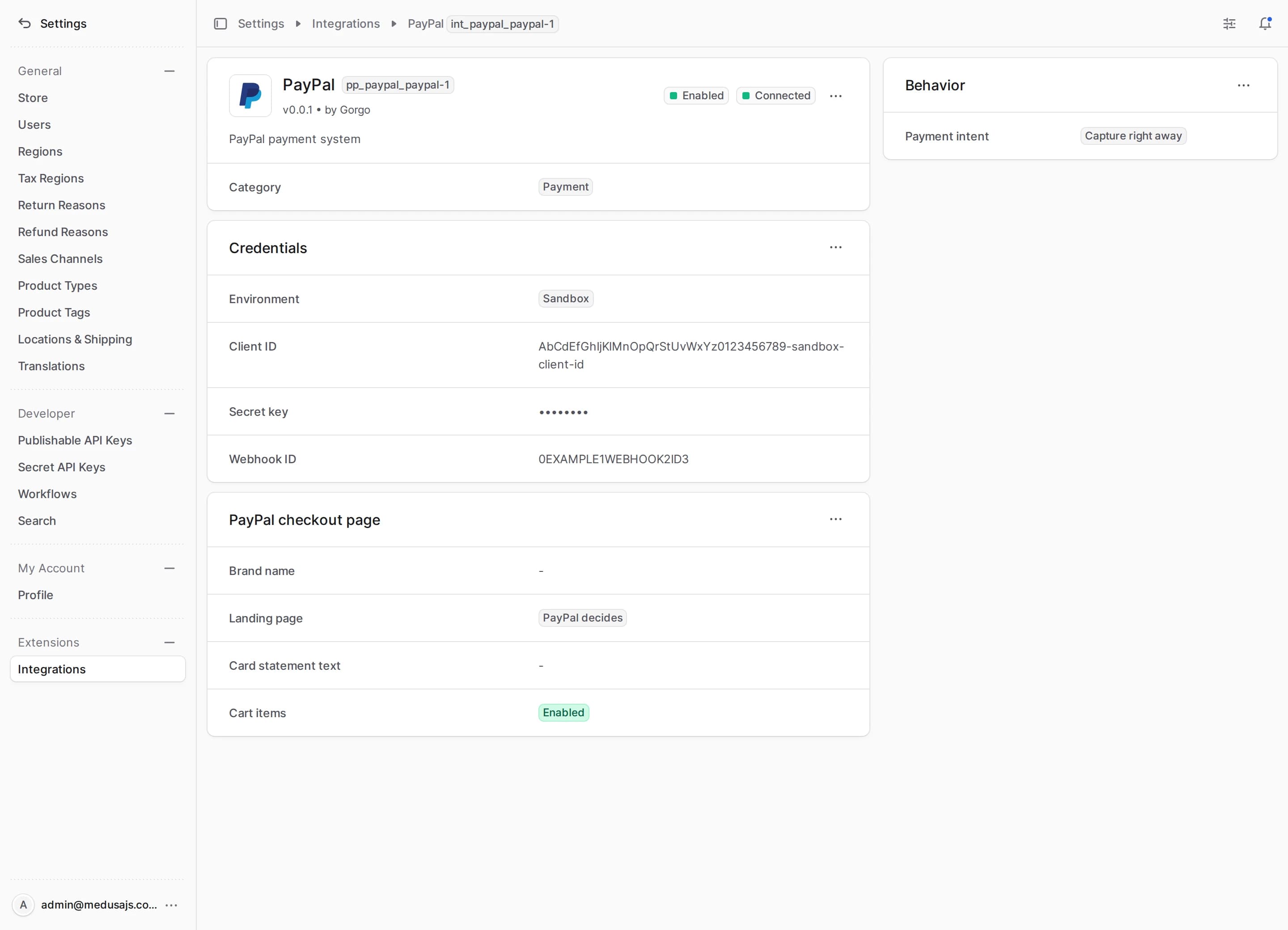
Edit PayPal Credential Parameters
You can update the environment, the client ID, the secret key and the webhook ID from the first section on the PayPal settings page. Sandbox takes test payments from sandbox accounts, Live takes real ones, and each environment has its own keys and webhooks in the PayPal Developer Dashboard.
To edit the credential parameters:
- Go to Settings → Integrations → PayPal.
- In the Credentials section, click the action menu in the section's header.
- Choose Edit.
- In the side panel that opens, update the environment, the client ID, the secret key and the webhook ID. See Webhook Setup for where the webhook ID comes from.
- Click Save.
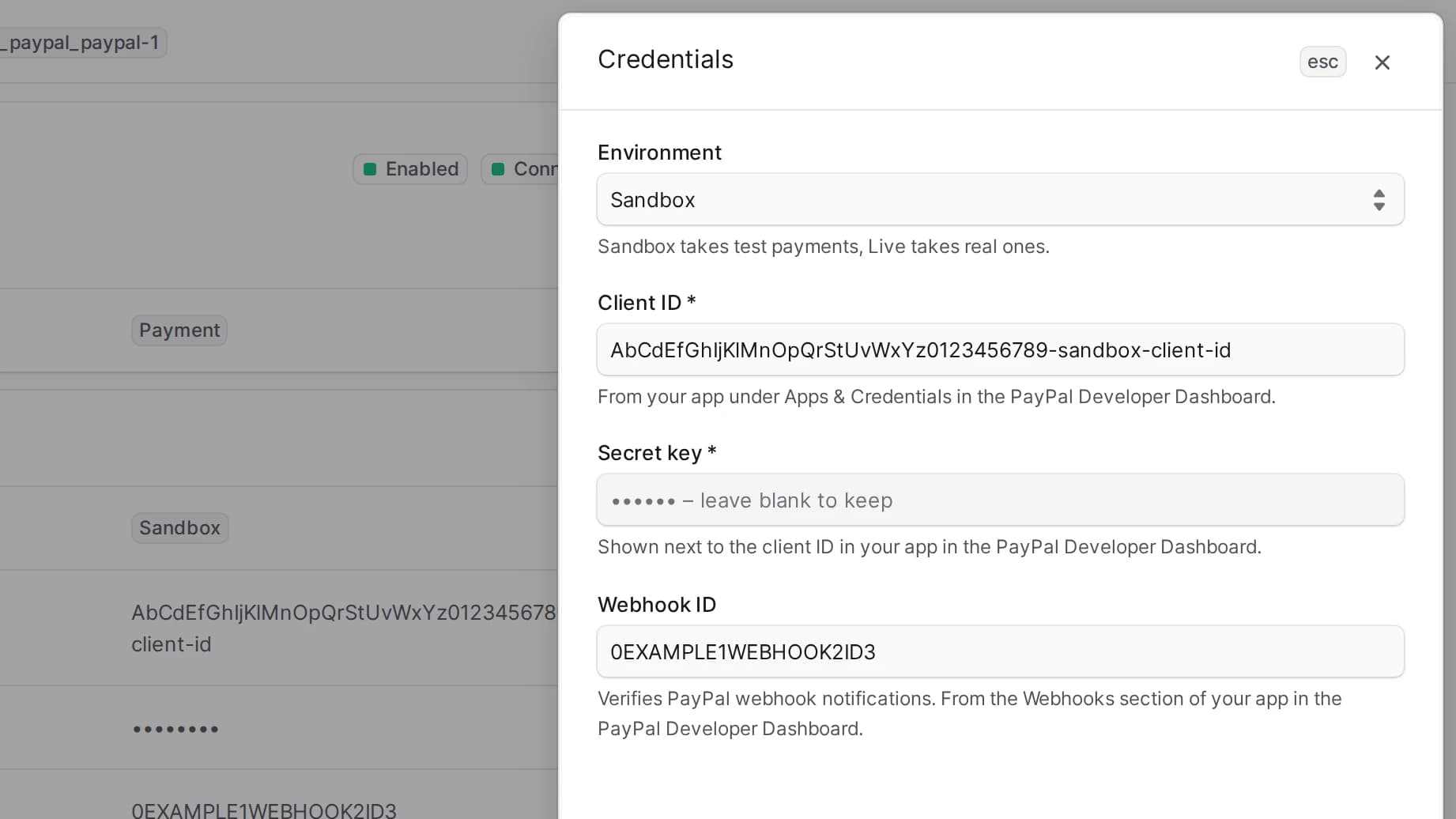
Then click Test connection. It gets an access token from the chosen environment, so wrong keys or keys from the other environment fail here. With a webhook ID, it also checks that the webhook exists in that environment and is subscribed to and .
Edit Behavior Type
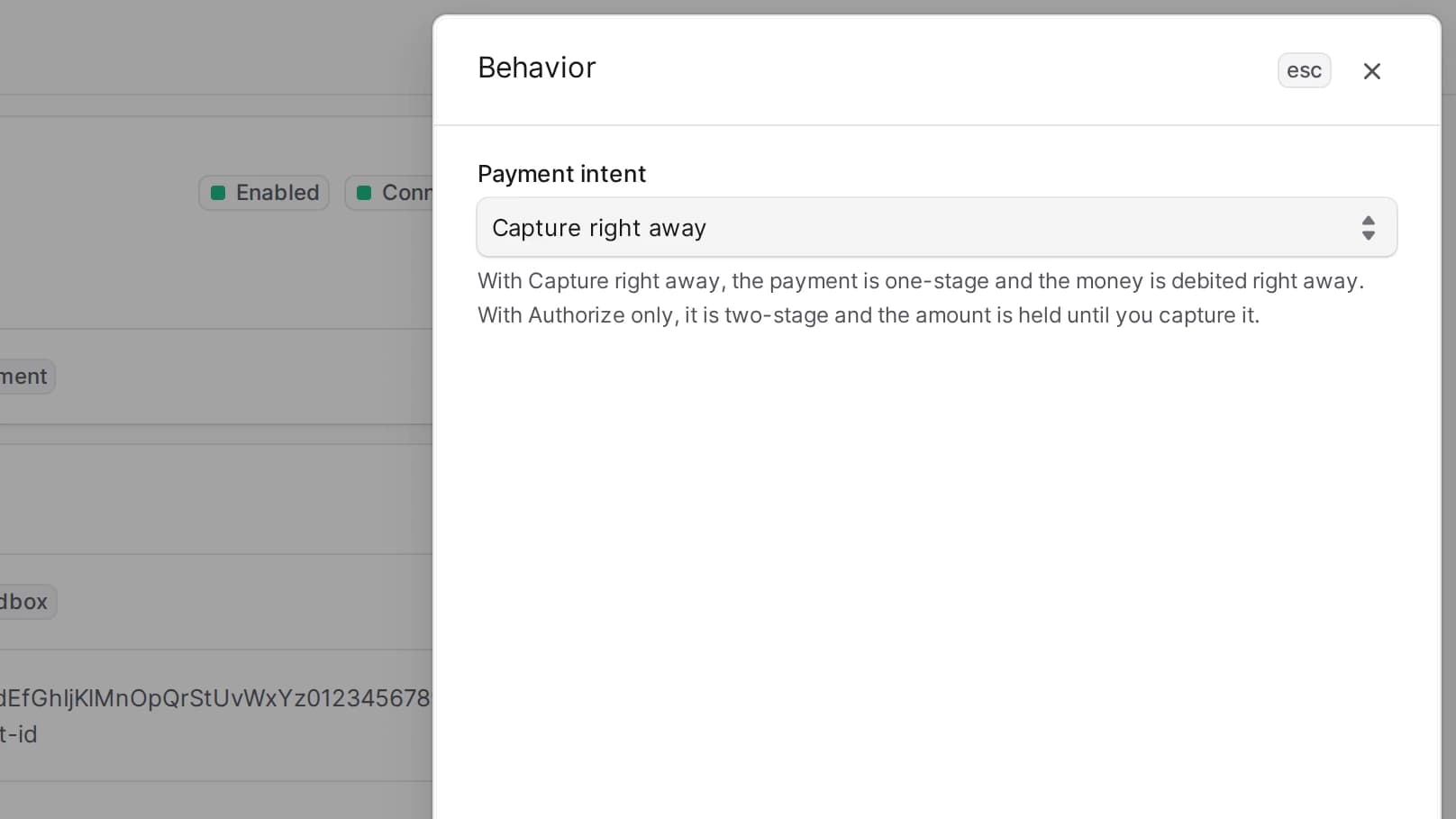
The Behavior section determines the payments processing type.
If Capture right away is selected, one-step payment is used. If Authorize only is selected, two-step payment is used, and you capture the held amount from the order in Medusa Admin. PayPal guarantees the funds for 3 days and lets you capture within 29 days.
To edit the payment behavior:
- Go to Settings → Integrations → PayPal.
- In the Behavior section, click the action menu in the section's header.
- Choose Edit.
- In the side panel that opens, update the payment intent.
- Click Save.
Edit the PayPal Checkout Page
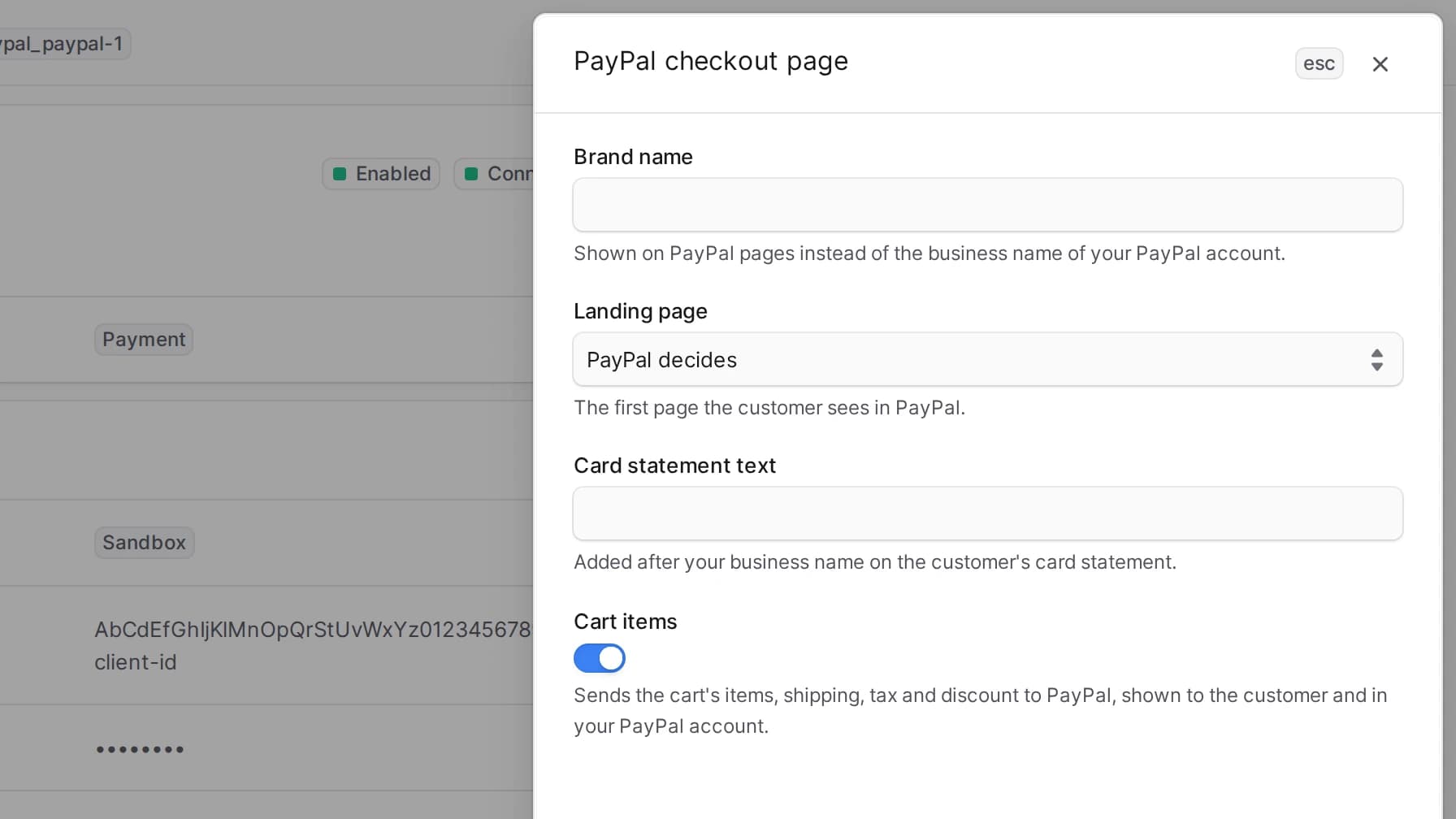
The PayPal checkout page section determines what the buyer sees after leaving for PayPal.
- Brand name replaces the business name of your PayPal account on PayPal pages, up to 127 characters.
- Landing page is the page the buyer sees first. You can leave the choice to PayPal, or open the PayPal login or the guest checkout with a card.
- Card statement text is added after your business name on the buyer's card statement. The statement shows 22 characters, the prefix included, so keep it short.
- Cart items sends the cart's items, shipping, tax and discount to PayPal. The customer sees them in the PayPal window, and you see them on the transaction in your PayPal account. When the cart does not add up to the payment amount, for example with a gift card, the order goes to PayPal with the amount alone.
To edit the checkout page settings:
- Go to Settings → Integrations → PayPal.
- In the PayPal checkout page section, click the action menu in the section's header.
- Choose Edit.
- In the side panel that opens, update the brand name, the landing page, the card statement text and the cart items switch.
- Click Save.
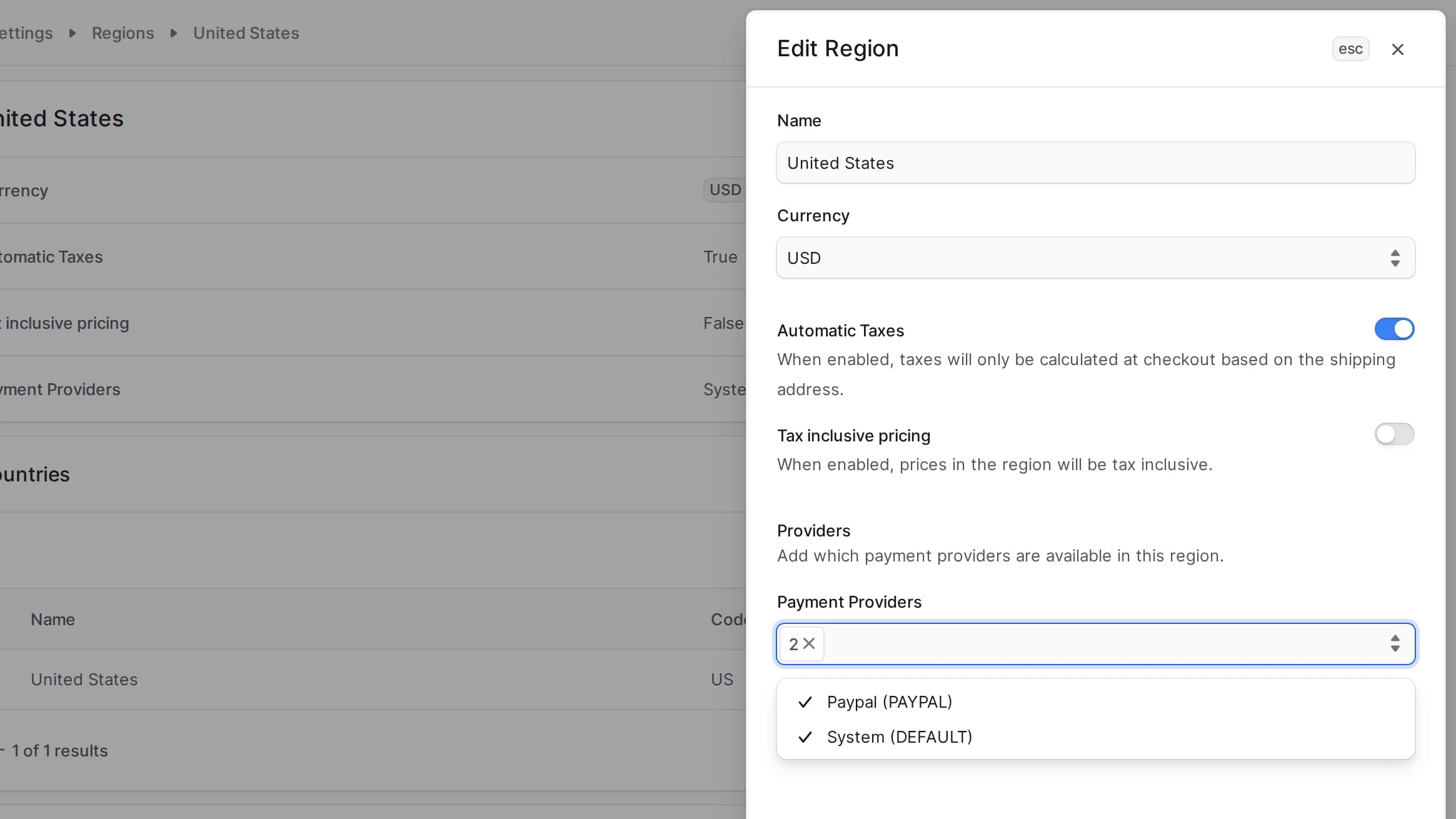
Add Payment Provider
To add a payment provider displayed in the Storefront for PayPal:
- Go to Settings → Regions.
- Choose your region.
- In the first section, click the action menu in the section's header.
- Choose Edit.
- In the modal that opens, add Paypal (PAYPAL) to Payment Providers.
- Click Save.
The plugin refuses a payment in a currency PayPal does not accept, so add PayPal only to regions that use one of the 25 PayPal currencies. PayPal supports BRL, CNY and MYR as a payment currency only for PayPal accounts in the same country.