Command Palette

Search for a command to run...

Integrate PayPal Payment into Storefront

To integrate the PayPal payment provider into the Medusa DTC Starter by Gorgo storefront, start by adding the required UI components, so the provider is displayed on the checkout page alongside other available payment methods.

When the customer clicks the PayPal button at the payment step or in the express checkout row, the checkout initiates a payment session, and the provider creates a PayPal order for it. The customer then approves the payment in the PayPal window.

Once the payment is approved, the storefront completes the cart and creates a new order in Medusa. If the customer closes the tab after PayPal has captured the payment, the webhook creates the order instead.

For the storefront on Next.js, you need to make the following changes:

Step 1: Install the PayPal JS SDK

The buttons come from the official React wrapper of the PayPal JS SDK. Install it in the storefront:

yarn add @paypal/react-paypal-js@^8.9.2

Version 8 of loads the PayPal JavaScript SDK from and provides , whose callback reports the address the customer picks in the PayPal window.


Step 2: Configure Payment Provider

To make PayPal available as a payment method on the storefront checkout page, you must add its configuration to the payment provider mapping in your storefront's constants file. This mapping determines how each payment provider is displayed in the UI.

Open and add the following code:
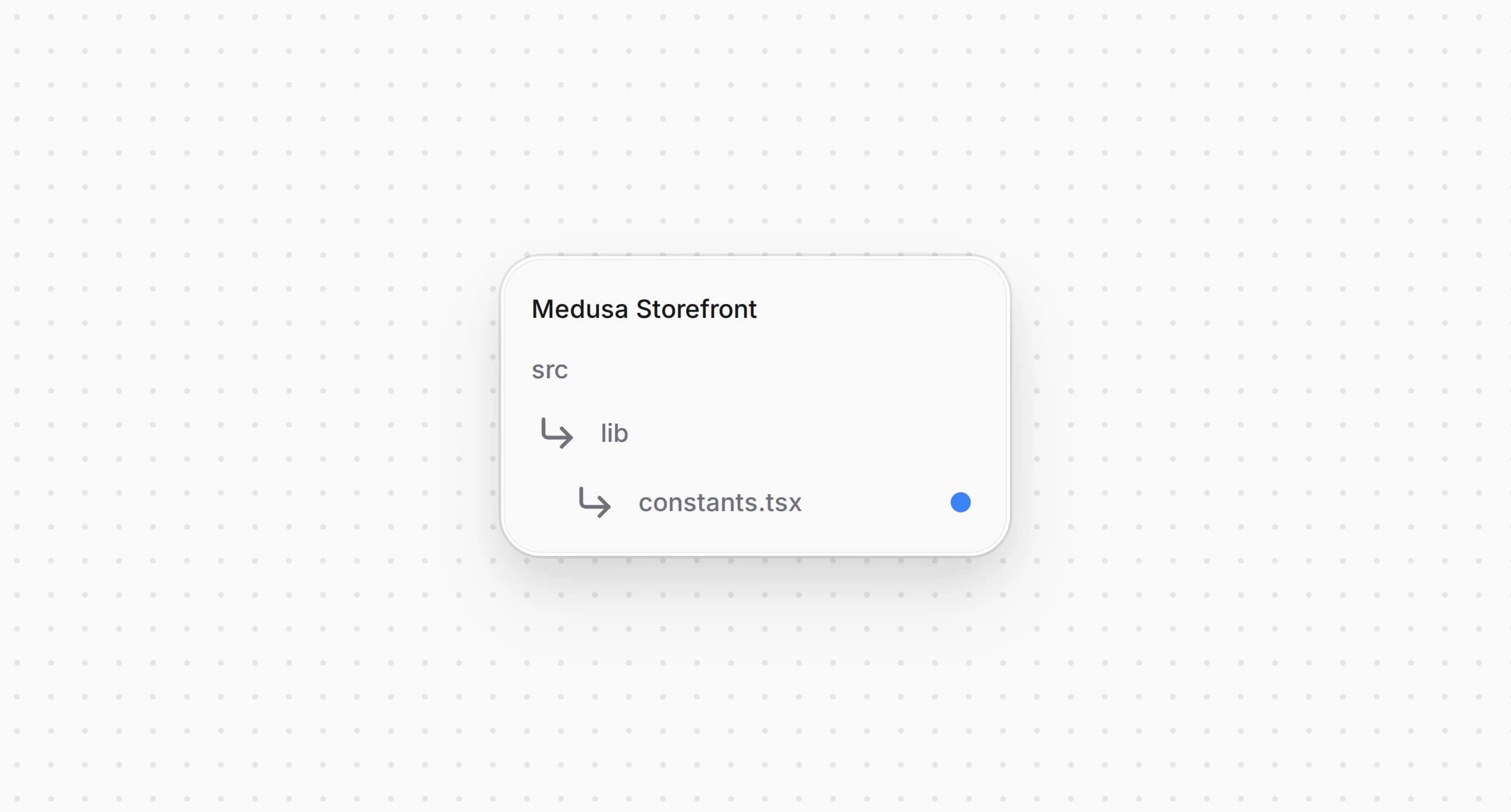
Directory structure in the Medusa Storefront after updating the file for constants

src/lib/constants.tsx
1export const paymentInfoMap: Record<string, PaymentInfo> = {
2 // ...
3 pp_paypal_paypal: {
4 title: "PayPal",
5 subtitle: "Cards, wallet",
6 icon: <PayPal />,
7 },
8 // ...
9}
10
11// ...
12
13export const isPaypal = (providerId?: string) => {
14 return providerId?.startsWith("pp_paypal")
15}

You extend the object to include a entry. This entry defines the title, the subtitle, and the icon that will be shown for PayPal on the checkout page, and also serves as the fallback when a locale carries no translation. The icon comes with the starter, in .

The helper function checks whether a given belongs to PayPal. It's used by the dispatcher below and by the session data builder in the next step.


Step 3: Initialize Payment Session

To create the PayPal order, the payment session must be properly initialized with the required parameters, including the delivery address and the buyer's details for PayPal's card form.

Open the same and add the session data builder:

Directory structure in the Medusa Storefront after updating the file for constants

src/lib/constants.tsx
1const paymentSessionDataBuilders: Array<{
2 test: (providerId?: string) => boolean | undefined
3 isReady?: (cart: HttpTypes.StoreCart) => boolean
4 build: (cart: HttpTypes.StoreCart) => Record<string, unknown>
5}> = [
6 {
7 test: (providerId) => isPaypal(providerId),
8 // The PayPal order carries the cart's total and the delivery address, so the
9 // session starts once the checkout has an email, an address and a shipping
10 // method. Earlier, PayPal gets an order for a cart that has none of them.
11 isReady: (cart) =>
12 Boolean(
13 cart.email &&
14 cart.shipping_address?.address_1 &&
15 (cart.shipping_methods?.length ?? 0) > 0
16 ),
17 // The email, the name and the billing address fill in PayPal's card form.
18 build: (cart) => ({
19 shipping_address: cart.shipping_address,
20 billing_address: cart.billing_address,
21 email: cart.email,
22 }),
23 },
24]

When initiating a payment for PayPal, passes the shipping address, the billing address and the email. The provider sets the delivery address on the PayPal order, and the email, the name and the billing address fill in PayPal's card form when the customer pays by card.

holds the session back until the cart carries an email, a shipping address and a shipping method, since the PayPal order needs the cart's total and the delivery address. The payment button reads the same , so the PayPal button at the payment step stays disabled until then.


Step 4: Load PayPal Settings and the Buyer

The storefront gets two kinds of data from the backend. To show the PayPal buttons, it loads the public PayPal settings for the SDK. After an express checkout, it gets the contact and shipping address the customer chose in PayPal and fills the cart with them.

Create and add the following code:
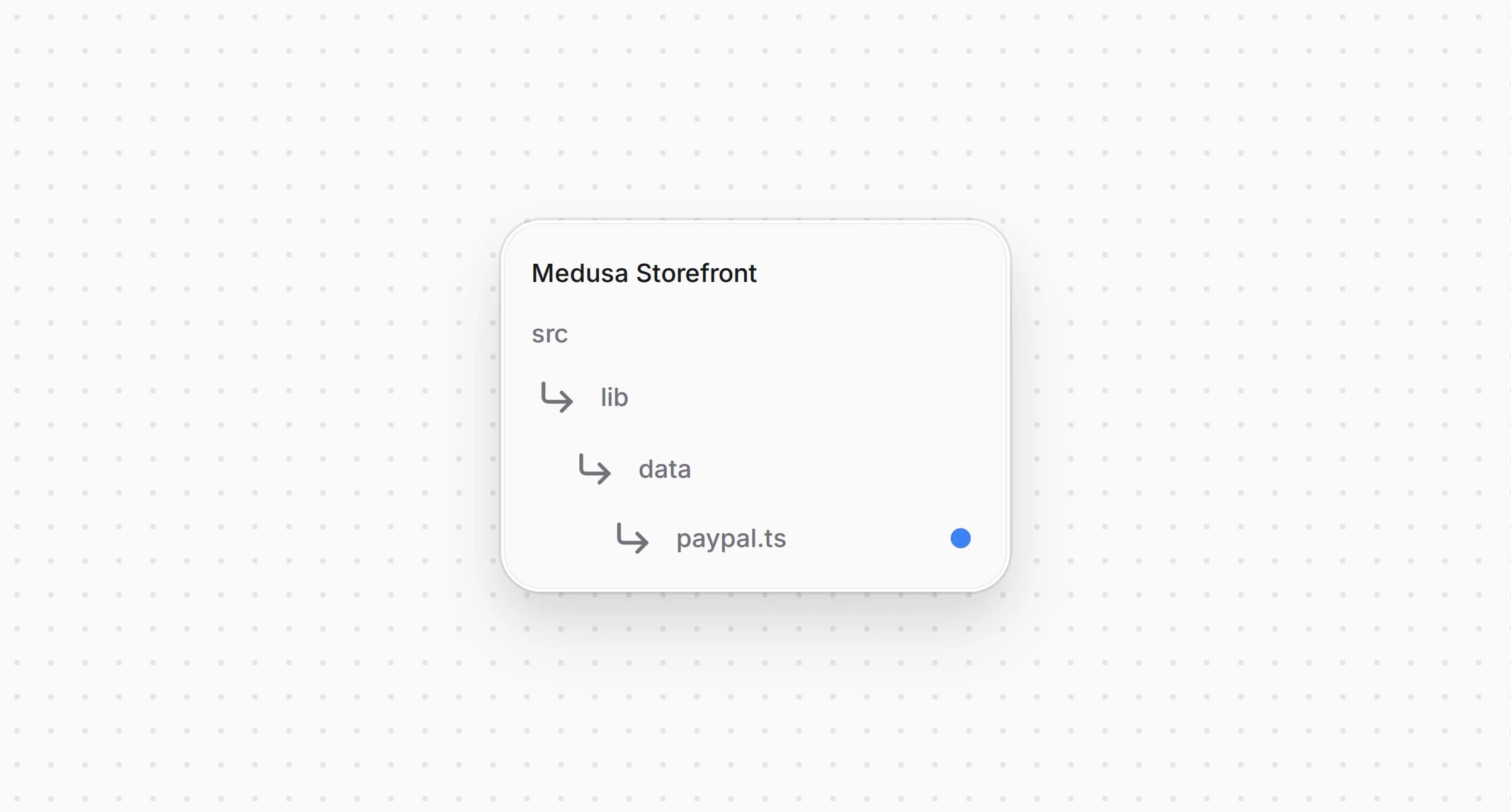
Directory structure in the Medusa Storefront after creating the file for PayPal data loaders

src/lib/data/paypal.ts
1"use server"
2
3import { sdk } from "@lib/config"
4import { getAuthHeaders, getCartId } from "./cookies"
5
6/** What the storefront needs to load the PayPal JS SDK, from `GET /store/paypal/config`. */
7export type PayPalConfig = {
8 provider_id: string
9 client_id: string
10 environment: "sandbox" | "live"
11 intent: "capture" | "authorize"
12}
13
14/** The buyer of an approved PayPal order, from `GET /store/paypal/orders/:id/payer`. */
15export type PayPalPayer = {
16 amount: { currency_code: string; value: string } | null
17 email: string | null
18 phone: string | null
19 shipping_address: {
20 first_name: string | null
21 last_name: string | null
22 address_1: string | null
23 address_2: string | null
24 city: string | null
25 province: string | null
26 postal_code: string | null
27 country_code: string | null
28 phone: string | null
29 } | null
30}
31
32/**
33 * The public PayPal settings of the only PayPal integration, or null while it is
34 * not configured. The client ID and the intent change only in the Admin, so the
35 * answer is cached for a minute.
36 */
37export async function getPayPalConfig(): Promise<PayPalConfig | null> {
38 return sdk.client
39 .fetch<{ config: PayPalConfig }>("/store/paypal/config", {
40 method: "GET",
41 next: { revalidate: 60 },
42 })
43 .then(({ config }) => config)
44 .catch(() => null)
45}
46
47/**
48 * The contact and the shipping address the buyer chose in PayPal, and the amount
49 * they approved. The backend answers only for an order created for this cart.
50 */
51export async function getPayPalPayer(orderId: string): Promise<PayPalPayer> {
52 const cartId = await getCartId()
53 if (!cartId) {
54 throw new Error("No existing cart found for the PayPal order")
55 }
56
57 const { payer } = await sdk.client.fetch<{ payer: PayPalPayer }>(
58 `/store/paypal/orders/${encodeURIComponent(orderId)}/payer`,
59 {
60 method: "GET",
61 query: { cart_id: cartId },
62 headers: { ...(await getAuthHeaders()) },
63 cache: "no-store",
64 }
65 )
66 return payer
67}

The file has two functions:

  • returns the client ID, the environment and the payment intent from . When the store has no enabled, fully configured PayPal integration, it returns , and the storefront hides the PayPal buttons.
  • returns the customer's email, phone and shipping address from , along with the amount they approved in PayPal. It sends the cart ID with the request, and the backend answers only for a PayPal order created for this cart. This way, nobody can read another customer's address by guessing an order ID.

Both functions work with the store's only PayPal integration. If you connected several PayPal integrations, add the query parameter to both requests.


Step 5: Load the PayPal SDK

The PayPal buttons work only inside a component that loads the PayPal JS SDK. The payment button and the express checkout button need the SDK with the same client ID, payment intent and currency, so both use one wrapper component.

Create and add the following code:
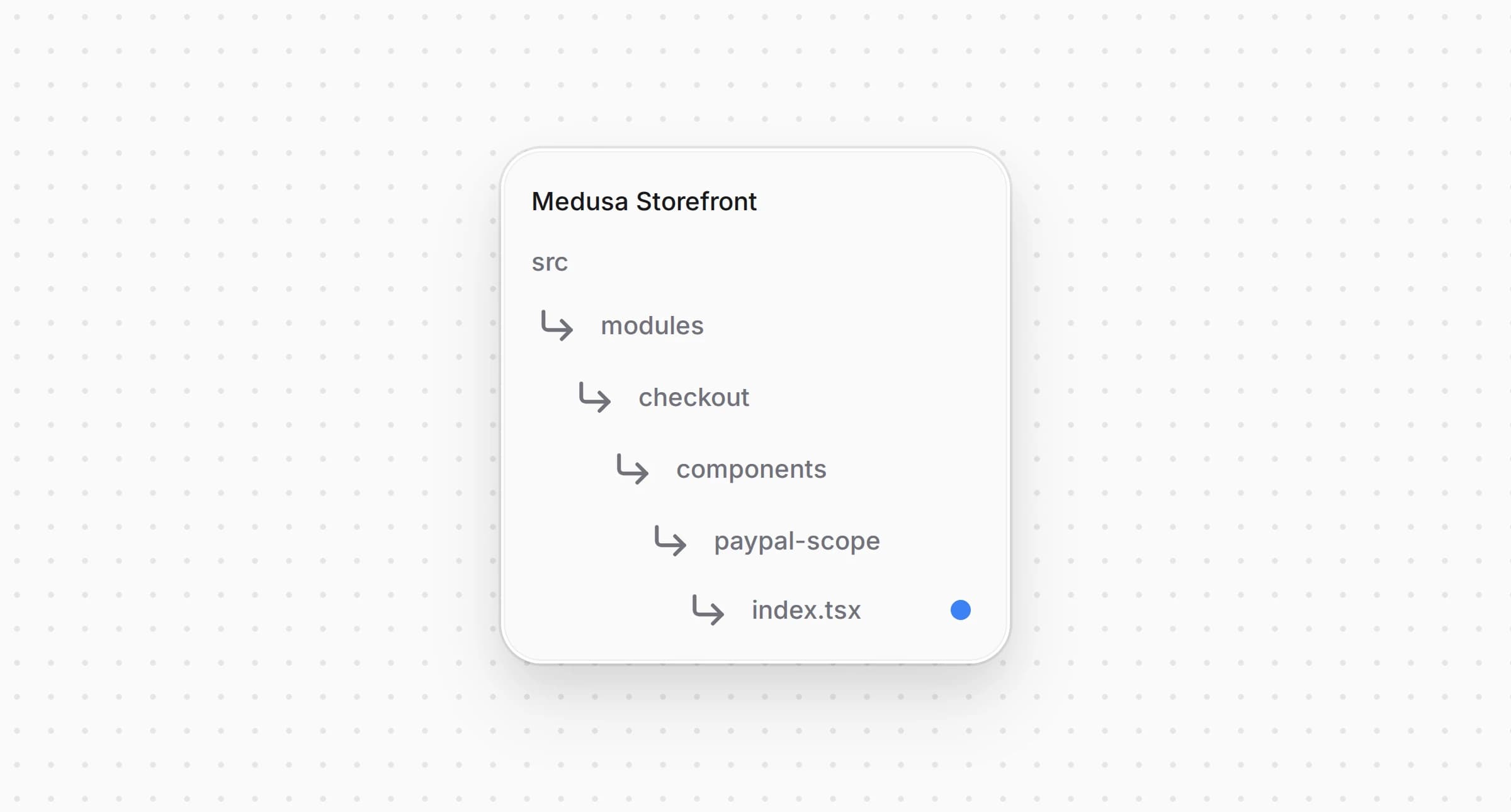
Directory structure in the Medusa Storefront after creating the file for the PayPal SDK wrapper

src/modules/checkout/components/paypal-scope/index.tsx
1"use client"
2
3import { getPayPalConfig, type PayPalConfig } from "@lib/data/paypal"
4import { PayPalScriptProvider } from "@paypal/react-paypal-js"
5import { unstable_rethrow } from "next/navigation"
6import { type ReactNode, useEffect, useState } from "react"
7
8// One request per page, shared by every PayPal button on it.
9let configRequest: Promise<PayPalConfig | null> | null = null
10
11/** The PayPal settings, `undefined` while they load and `null` without a PayPal integration. */
12export const usePayPalConfig = () => {
13 const [config, setConfig] = useState<PayPalConfig | null | undefined>(undefined)
14
15 useEffect(() => {
16 let active = true
17 configRequest ??= getPayPalConfig().catch(() => null)
18 configRequest.then((value) => {
19 if (active) setConfig(value)
20 })
21 return () => {
22 active = false
23 }
24 }, [])
25
26 return config
27}
28
29/**
30 * True for the control-flow error a placed order's `redirect()` throws. The
31 * router follows the redirect on its own, so a PayPal callback that meets it
32 * returns instead of reporting a failure over the placed order.
33 */
34export const isNavigation = (error: unknown) => {
35 try {
36 unstable_rethrow(error)
37 return false
38 } catch {
39 return true
40 }
41}
42
43/**
44 * Loads the PayPal JS SDK for the buttons inside it, with the client ID and the
45 * intent the backend creates orders with and the cart's currency. Keyed by the
46 * currency, because the provider reads its options once and a change inside a
47 * mounted provider leaves the buttons blank.
48 */
49export default function PayPalScope({
50 currencyCode,
51 onUnavailable,
52 children,
53}: {
54 currencyCode?: string | null
55 /** Called when the store has no PayPal integration configured. */
56 onUnavailable?: () => void
57 children: ReactNode
58}) {
59 const config = usePayPalConfig()
60
61 useEffect(() => {
62 if (config === null) onUnavailable?.()
63 }, [config, onUnavailable])
64
65 if (!config) {
66 return null
67 }
68
69 const currency = (currencyCode || "usd").toUpperCase()
70 return (
71 <PayPalScriptProvider
72 key={currency}
73 options={{
74 clientId: config.client_id,
75 currency,
76 intent: config.intent,
77 components: "buttons",
78 }}
79 >
80 {children}
81 </PayPalScriptProvider>
82 )
83}

The file exports the following:

  • loads the SDK with the client ID and the payment intent from the backend and with the cart's currency. The PayPal buttons go inside it. It shows nothing while the settings load, and calls when the store has no PayPal integration.
  • requests the PayPal settings once per page, however many PayPal buttons the page has.
  • tells the redirect after a placed order apart from a real error. Once the order is placed, Next.js throws a special error to open the order confirmation page. recognizes it, so the PayPal button does not show an error over an order that has already been placed.

The prop with the cart's currency recreates when the currency changes. The provider reads its options only once, and without the SDK would stay loaded with the old currency.


Step 6: Create Payment Button

The storefront needs a dedicated payment button component for each payment provider. At the payment step, PayPal shows its own button instead of the order button. The button opens the PayPal window, and once the customer approves the payment there, the component places the order. Until the customer fills in everything the order needs, for example the shipping address, the component shows a disabled order button.

Create and add the following code:
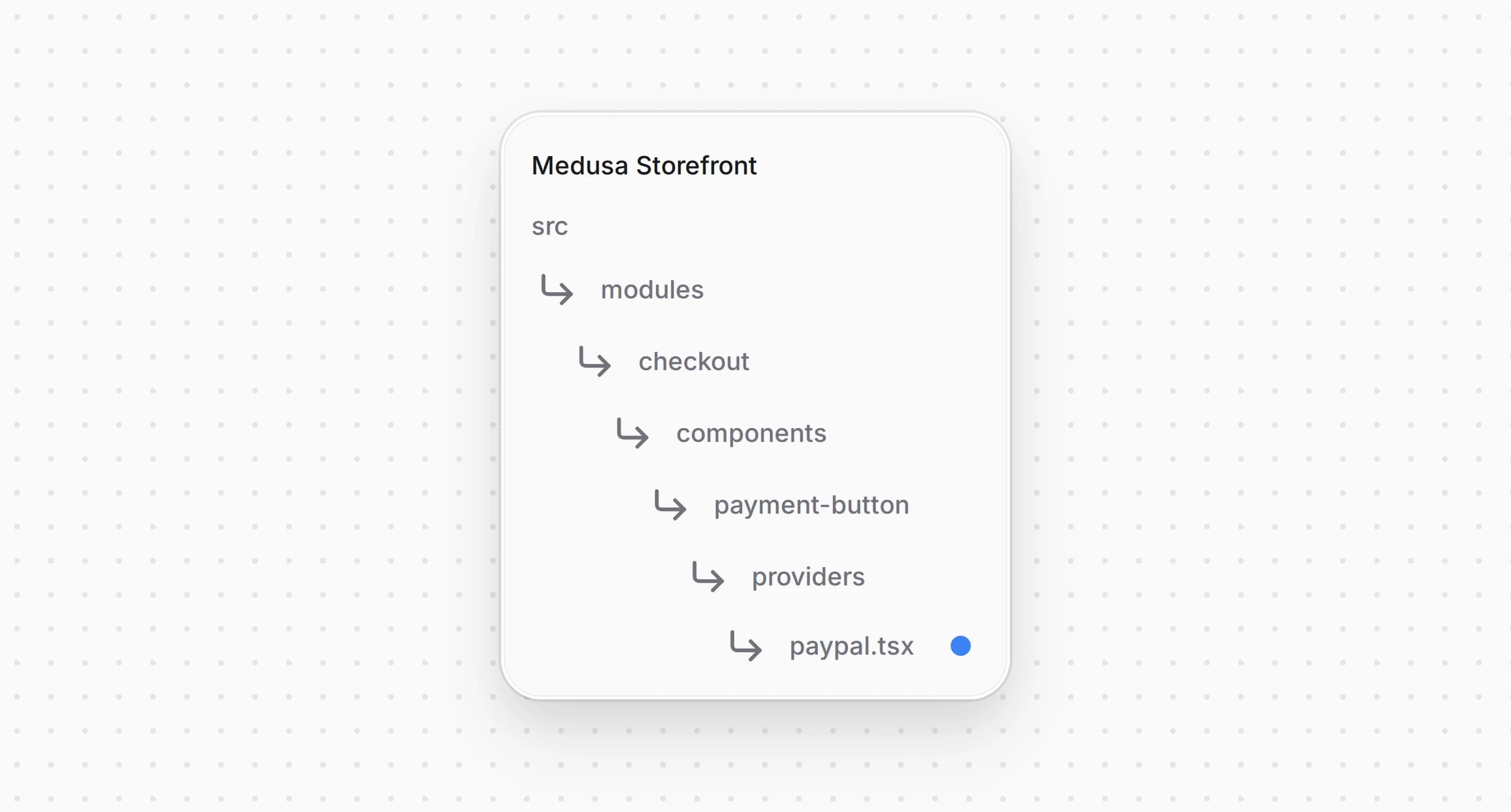
Directory structure in the Medusa Storefront after creating the file for the PayPal payment button

src/modules/checkout/components/payment-button/providers/paypal.tsx
1"use client"
2
3import { buildPaymentSessionData, isPaypal } from "@lib/constants"
4import { startExpressPayment } from "@lib/data/express-checkout"
5import { Button } from "@medusajs/ui"
6import ErrorMessage from "@modules/checkout/components/error-message"
7import PayPalScope, {
8 isNavigation,
9} from "@modules/checkout/components/paypal-scope"
10import { PayPalButtons, usePayPalScriptReducer } from "@paypal/react-paypal-js"
11import { type PaymentProviderButtonProps, usePlaceOrder } from "../shared"
12
13function PayPalButtonsInner({
14 cart,
15 notReady,
16 cartUpdating,
17 label,
18 "data-testid": dataTestId,
19}: PaymentProviderButtonProps) {
20 const [{ isResolved, isRejected }] = usePayPalScriptReducer()
21 const { setSubmitting, errorMessage, setErrorMessage, completeOrder } =
22 usePlaceOrder()
23
24 const providerId =
25 cart.payment_collection?.payment_sessions?.find((s) =>
26 isPaypal(s.provider_id)
27 )?.provider_id ?? "pp_paypal_paypal"
28
29 // The PayPal buttons show once the checkout has what the order needs.
30 if (notReady || cartUpdating) {
31 return (
32 <Button
33 disabled
34 size="large"
35 isLoading={cartUpdating}
36 className="w-full"
37 data-testid={dataTestId}
38 >
39 {label}
40 </Button>
41 )
42 }
43 if (isRejected) {
44 return <ErrorMessage error="payment failed" data-testid={dataTestId} />
45 }
46 if (!isResolved) {
47 return (
48 <div className="h-12 rounded-md bg-ui-bg-component" aria-hidden="true" />
49 )
50 }
51
52 // `isolate` keeps the SDK's iframe, at z-index 100, under the checkout modals.
53 return (
54 <div className="isolate" data-testid={dataTestId}>
55 <PayPalButtons
56 style={{
57 layout: "vertical",
58 color: "gold",
59 shape: "rect",
60 label: "paypal",
61 height: 48,
62 }}
63 // The order of the session the checkout started when the cart was ready.
64 // Without one, a new session at the click carries the cart as it is now.
65 createOrder={async () => {
66 setErrorMessage(null)
67 const pending = cart.payment_collection?.payment_sessions?.find(
68 (s) => isPaypal(s.provider_id) && s.status === "pending"
69 )?.data?.paypal_order_id
70 if (typeof pending === "string" && pending) {
71 return pending
72 }
73 const data = await startExpressPayment(
74 providerId,
75 buildPaymentSessionData(providerId, cart) ?? {}
76 )
77 const orderId = data.paypal_order_id
78 if (typeof orderId !== "string" || !orderId) {
79 throw new Error("PayPal payment session has no order")
80 }
81 return orderId
82 }}
83 onApprove={async () => {
84 setSubmitting(true)
85 try {
86 await completeOrder()
87 } catch (err) {
88 if (isNavigation(err)) return
89 throw err
90 }
91 }}
92 onCancel={() => setSubmitting(false)}
93 onError={(err) => {
94 setErrorMessage(err instanceof Error ? err.message : "payment failed")
95 setSubmitting(false)
96 }}
97 />
98 <ErrorMessage
99 error={errorMessage}
100 data-testid="paypal-payment-error-message"
101 />
102 </div>
103 )
104}
105
106/** The PayPal button at the payment step, in place of the order button. */
107const PayPalPaymentButton = (props: PaymentProviderButtonProps) => (
108 <PayPalScope currencyCode={props.cart.currency_code}>
109 <PayPalButtonsInner {...props} />
110 </PayPalScope>
111)
112
113export default PayPalPaymentButton

The component works as follows:

  • returns the ID of the PayPal order from the cart's payment session. If there is no session yet, the component creates one at the click. The PayPal order then matches the cart at the moment of payment, and PayPal shows the shipping address from the cart instead of asking the customer for one.
  • places the order through , the same hook the other payment buttons use.

Step 7: Register Payment Button

Import the button and in , then add a for it in the dispatcher's :
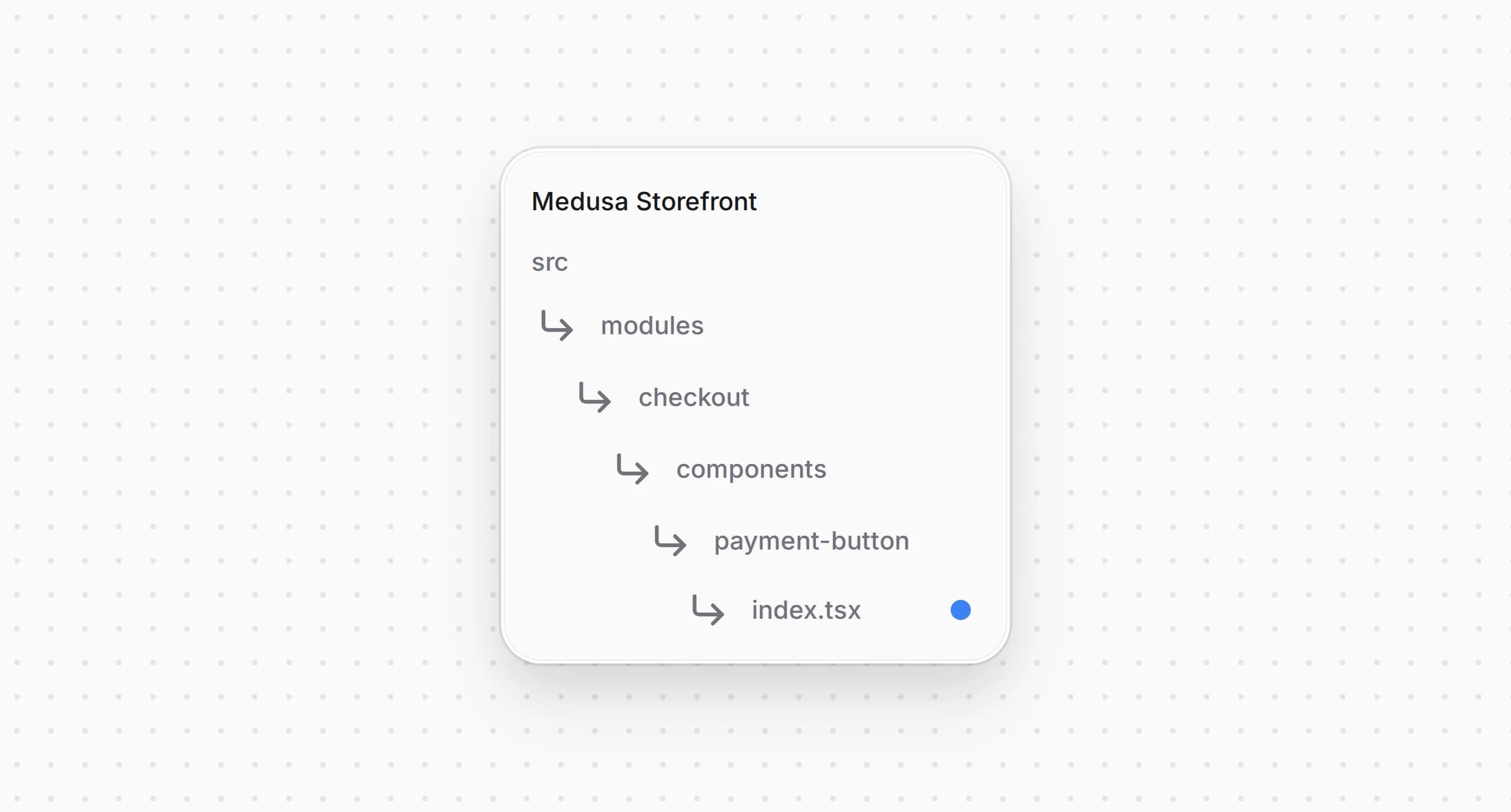
Directory structure in the Medusa Storefront after updating the file for payment button component

src/modules/checkout/components/payment-button/index.tsx
1import {
2 isManual,
3 isPaymentSessionReady,
4 isPaypal,
5 isShippingMethodReady,
6 isStripeLike,
7} from "@lib/constants"
8// ...
9import ManualPaymentButton from "./providers/manual"
10import PayPalPaymentButton from "./providers/paypal"
11import StripePaymentButton from "./providers/stripe"
12
13// ...
14
15 switch (true) {
16 case isStripeLike(activePaymentMethod):
17 return <StripePaymentButton {...providerProps} />
18 case isPaypal(activePaymentMethod):
19 return <PayPalPaymentButton {...providerProps} />
20 case isManual(activePaymentMethod):
21 return <ManualPaymentButton {...providerProps} />
22 // ...
23 }

The parent uses to determine whether to display for the current session; otherwise it falls through to the next case.


Step 8: Add PayPal to the Express Checkout Row

The express checkout row of the starter shows a button for every payment provider that is listed in its registry and enabled in the cart's region. In an express checkout, the customer picks the shipping address in the PayPal window, so the button also recalculates the shipping and the total. To learn how the row works and what a button receives, see Set Up Express Checkout.

Create and add the following code:
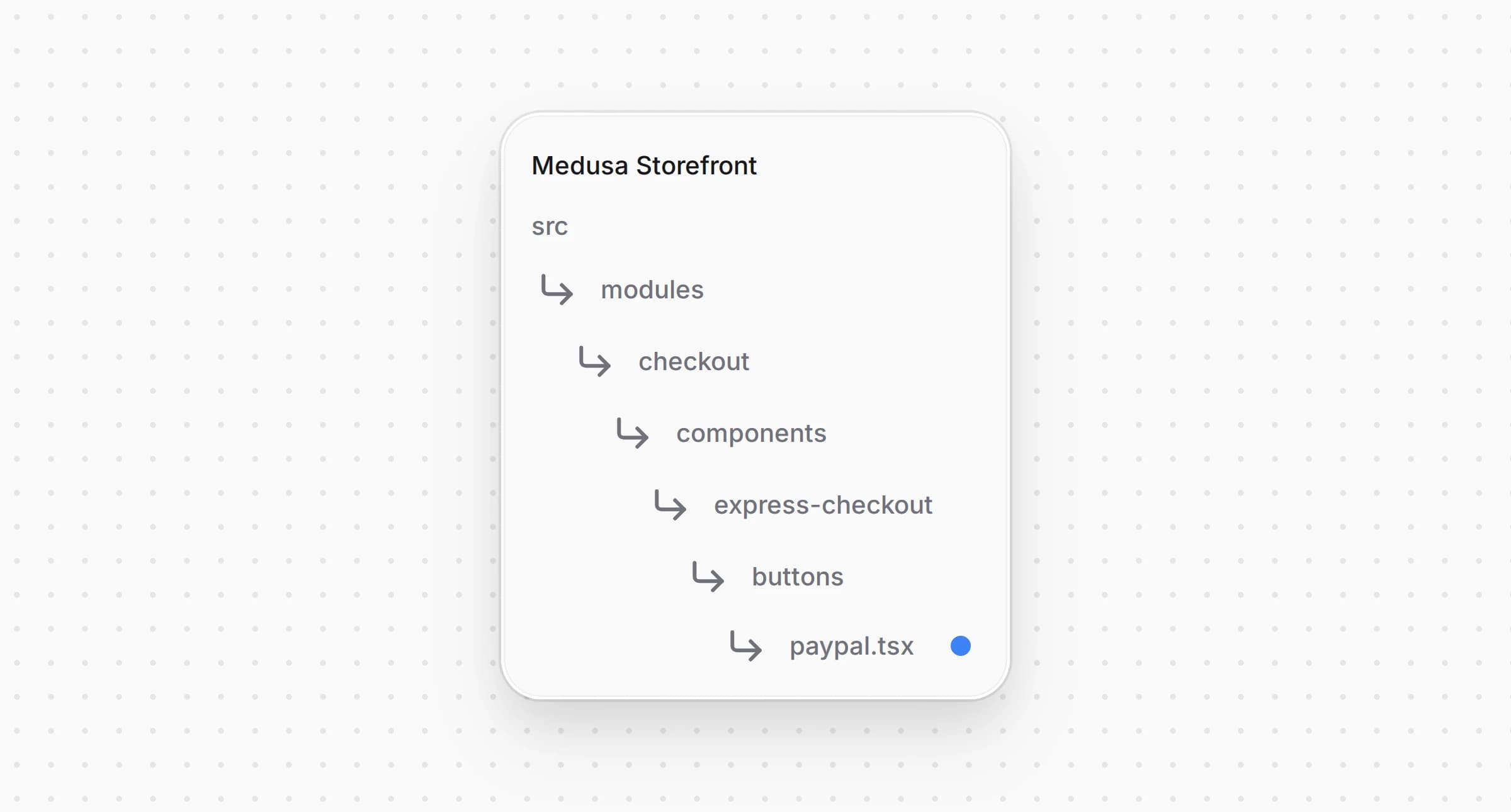
Directory structure in the Medusa Storefront after creating the file for the PayPal express checkout button

src/modules/checkout/components/express-checkout/buttons/paypal.tsx
53 }
54
55 // The SDK puts its iframe at z-index 100. `isolate` keeps it under the
56 // checkout modals, which would otherwise open beneath the button.
57 return (
58 <div className="isolate">
59 <PayPalButtons
60 fundingSource="paypal"
61 style={{
62 layout: "horizontal",
63 color: "gold",
64 shape: "rect",
65 label: "paypal",
66 height: 48,
67 tagline: false,
68 disableMaxWidth: true,
69 }}
70 createOrder={async () => {
71 onError(null)
72 const orderId = orderIdOf(
73 await startExpressPayment(providerId, { express: true })
74 )
75 orderRef.current = orderId
76 return orderId
77 }}
78 onShippingAddressChange={async (data, actions) => {
79 const orderId = data.orderID || orderRef.current
80 if (!orderId) return actions.reject()
81 let shipsThere = false
82 try {
83 const quote = await quoteExpressShipping(
84 {
85 country_code: data.shippingAddress.countryCode ?? "",
86 province: data.shippingAddress.state,
87 city: data.shippingAddress.city,
88 postal_code: data.shippingAddress.postalCode,
89 },
90 shippingOptionId
91 )
92 shipsThere = quote.ok
93 if (shipsThere) {
94 // A new total makes Medusa drop the session, so the order the
95 // customer is approving moves to a new one, which patches its amount.
96 await startExpressPayment(
97 providerId,
98 { express: true, paypal_order_id: orderId },
99 "paypal_order_id"
100 )
101 }
102 } catch {
103 return actions.reject()
104 }
105 if (!shipsThere) {
106 // PayPal shows the thrown message, so the customer learns why the
107 // address is refused. The SDK puts its own wording in `data.errors`,
108 // which its types leave out.
109 const { errors } = data as typeof data & {
110 errors?: { ADDRESS_ERROR?: string }
111 }
112 throw new Error(
113 errors?.ADDRESS_ERROR ??
114 "Your order can't be shipped to this address."
115 )
116 }
117 }}
118 onApprove={async (data) => {
119 onBusy(true)
120 try {
121 const payer = await getPayPalPayer(data.orderID)
122 const approved = payer.amount
123 ? Number(payer.amount.value)
124 : undefined
125 const saved = await saveExpressContact(
126 {
127 email: payer.email,
128 phone: payer.phone,
129 shipping_address: payer.shipping_address,
130 },
131 shippingOptionId,
132 approved
133 )
134 if (!saved.ok) {
135 onError(
136 saved.reason === "totalChanged"
137 ? {
138 code: "totalChanged",
139 total: saved.total,
140 currency_code: saved.currency_code,
141 }
142 : { code: saved.reason }
143 )
144 onBusy(false)
145 onClosed()
146 return
147 }
148 // The saved address may have changed the total once more.
149 await startExpressPayment(
150 providerId,
151 { express: true, paypal_order_id: data.orderID },
152 "paypal_order_id"
153 )
154 await placeOrder()
155 } catch (err) {
156 if (isNavigation(err)) return
157 onError({ code: "failed", cause: err })
158 onBusy(false)
159 onClosed()
160 }
161 }}
162 onCancel={() => onClosed()}
163 onError={(err) => {
164 onError({ code: "failed", cause: err })
165 onClosed()
166 }}
167 >
168 <Unavailable onMount={onUnavailable} />
169 </PayPalButtons>
170 </div>
171 )
172}
173
174/**
175 * PayPal in the express checkout row. The customer picks the address in the
176 * PayPal window, the row answers with the shipping and the new total, and the
177 * order is placed once they approve.
178 */
179export default function PayPalExpressButton(props: ExpressButtonProps) {
180 return (
181 <PayPalScope
182 currencyCode={props.cart.currency_code}
183 onUnavailable={props.onUnavailable}
184 >
185 <PayPalWalletButton {...props} />
186 </PayPalScope>
187 )
188}

The button handles three PayPal callbacks:

  • starts a payment session with . The provider then creates the PayPal order without an address, and PayPal asks the customer for one.
  • runs when the customer picks an address in the PayPal window. It recalculates the shipping and the total for that address and updates the amount of the PayPal order. If the cart's region doesn't ship to that address, the callback throws an error, and the PayPal window tells the customer, so they can pick another address.
  • saves the customer's contacts and address from in the cart, checks that the total hasn't grown above the amount the customer approved, and places the order.

When the total changes, Medusa deletes the payment session. That's why the button starts a new session with the same , and the provider attaches the PayPal order to it and updates the order amount.

The total check is needed because PayPal doesn't always share the address before approval, for example when a guest pays by card. The shipping for that address can raise the total, and then the button doesn't place the order but shows a message with the new total and asks the customer to pay again.
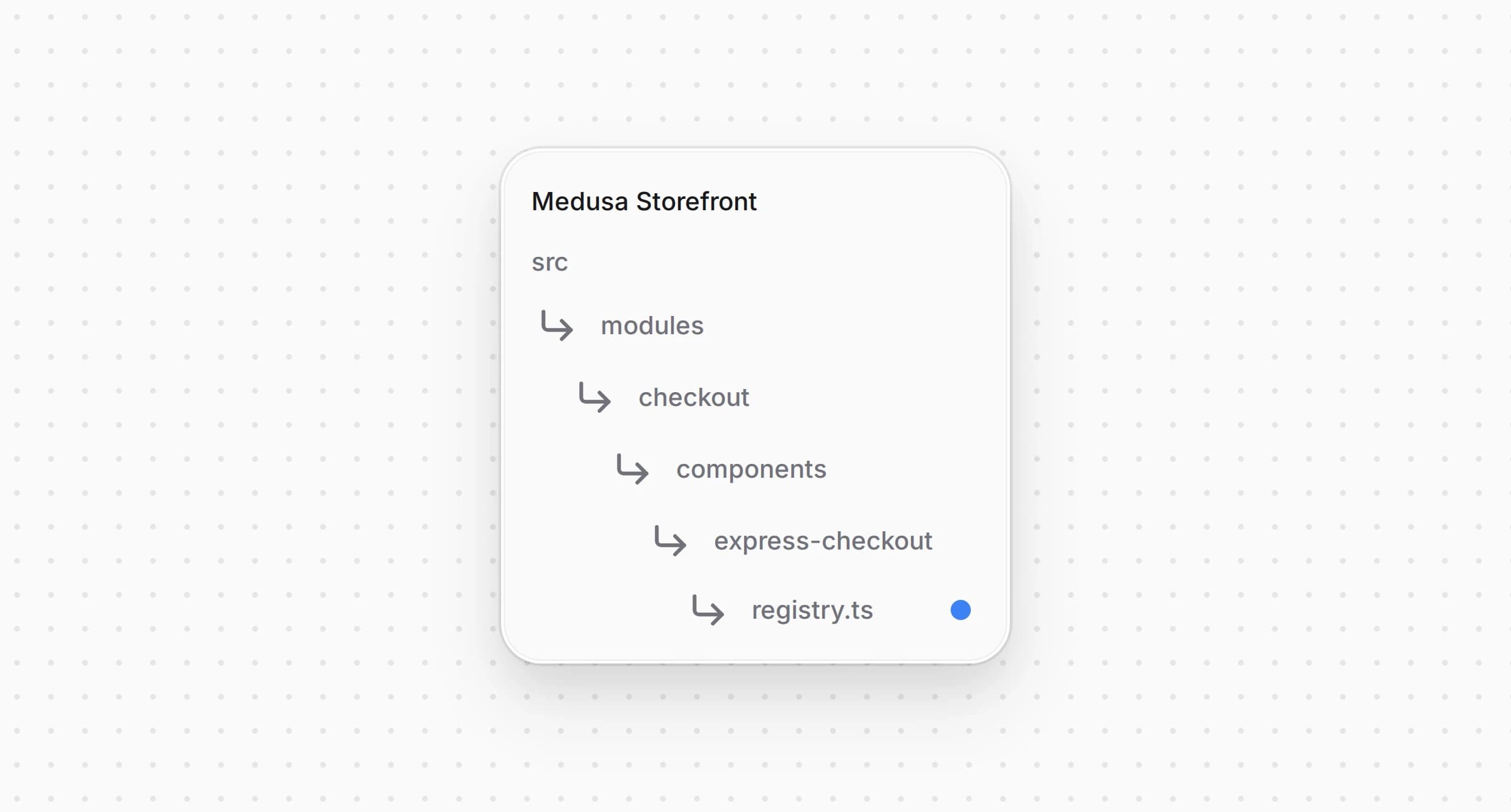
Then list the button in :

Directory structure in the Medusa Storefront after updating the express checkout registry

src/modules/checkout/components/express-checkout/registry.ts
1import { isPaypal } from "@lib/constants"
2import type { HttpTypes } from "@medusajs/types"
3import type { ComponentType } from "react"
4import PayPalExpressButton from "./buttons/paypal"
5
6// ...
7
8export const expressButtons: {
9 match: (providerId: string) => boolean
10 Component: ComponentType<ExpressButtonProps>
11}[] = [
12 { match: (providerId) => Boolean(isPaypal(providerId)), Component: PayPalExpressButton },
13]

The row now shows PayPal in every region where is enabled, and hides the button when PayPal is not available to the customer.


Step 9: Add Provider Labels to Storefront Locales

Add to and to every other locale under :

messages/en.json
1{
2 "PaymentMethods": {
3 // ...
4 "pp_paypal_paypal": {
5 "title": "PayPal",
6 "subtitle": "Cards, wallet"
7 }
8 }
9}

A locale missing an entry falls back to the English and from in Step 2.


Full Storefront Integration Code Example

The complete storefront is located at , built on the Medusa DTC Starter by Gorgo. The example's own README lists every file the integration consists of, backend included.

Edited Oct 27, 2026·Edit this page